To cancel a subscription that is paid via automatic renewal, please head to the relevant login page linked below and log in using your billing email address along with the billing last name/postcode:
AU - https://myaccount.natgeokids.com.au/
NZ - https://myaccount.natgeokids.co.nz/
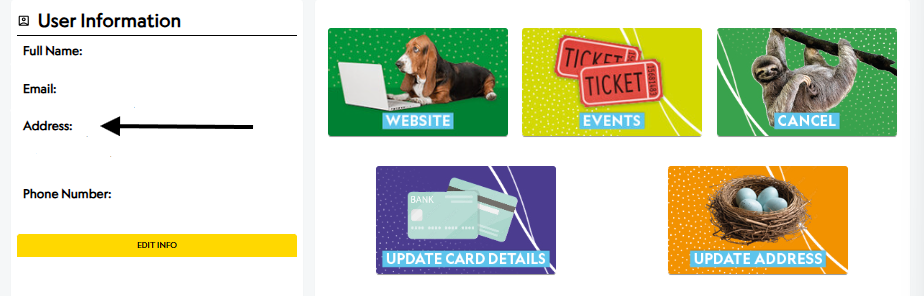
From here click on the 'Cancel' tile:
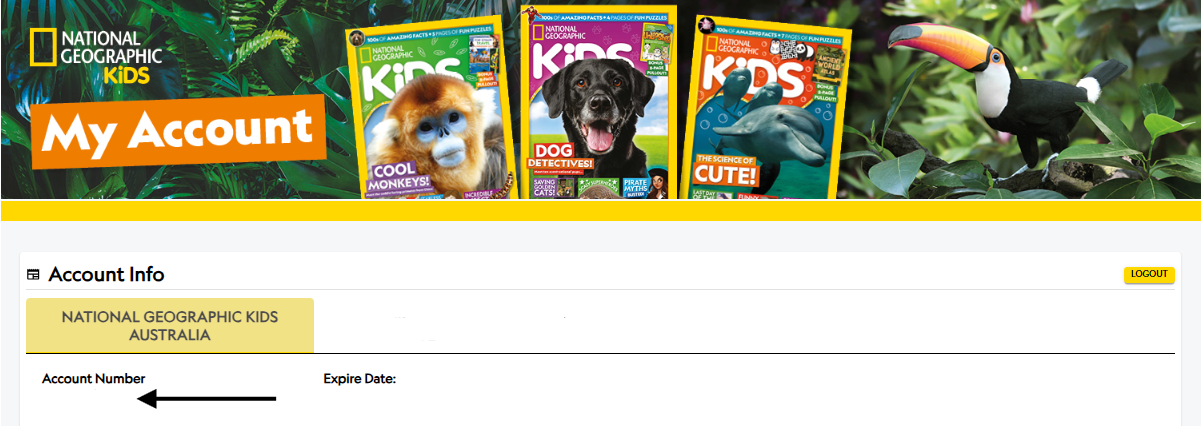
When prompted to log in after selecting this tile, please use the billing account number which is shown at the top of the My Account page under Account Info:
Along with the postcode or surname of yourself as the bill payer as displayed under User Information:
If the subscription(s) held is not under autorenew, a message will appear when you attempt login on the second login screen to say, 'This account does not have any autorenew.'
If the subscription(s) is under auto-renew, a new screen will load. Click the Cancel Autorenew button that shows the right-hand side of the relevant subscription, then click Submit:
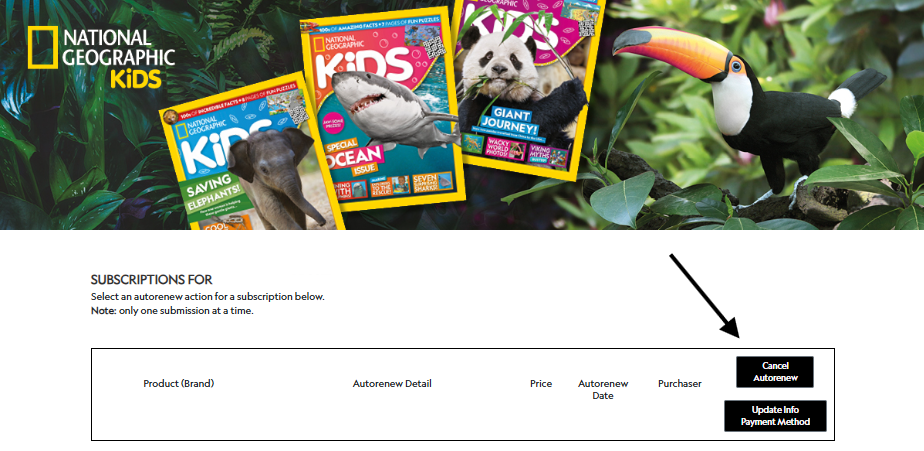
It will ask for the reason for cancellation; please select and then complete by clicking Submit. Once actioned, it will deactivate the autorenew feature on the chosen subscription, so at the end of the current paid term running it will come to a natural end.
PLEASE NOTE, this will not cancel and refund an order or renewal which has just been completed.
Was this article helpful?
That’s Great!
Thank you for your feedback
Sorry! We couldn't be helpful
Thank you for your feedback
Feedback sent
We appreciate your effort and will try to fix the article